


How to apply discount with Simple Discount Rules for Woocommerce?
How to setup discount by category or taxonomy?
- You can install the plugin “Simple Discount Rules” and activate it. (See how to install a plugin)
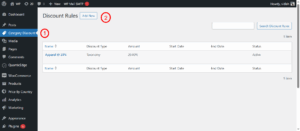
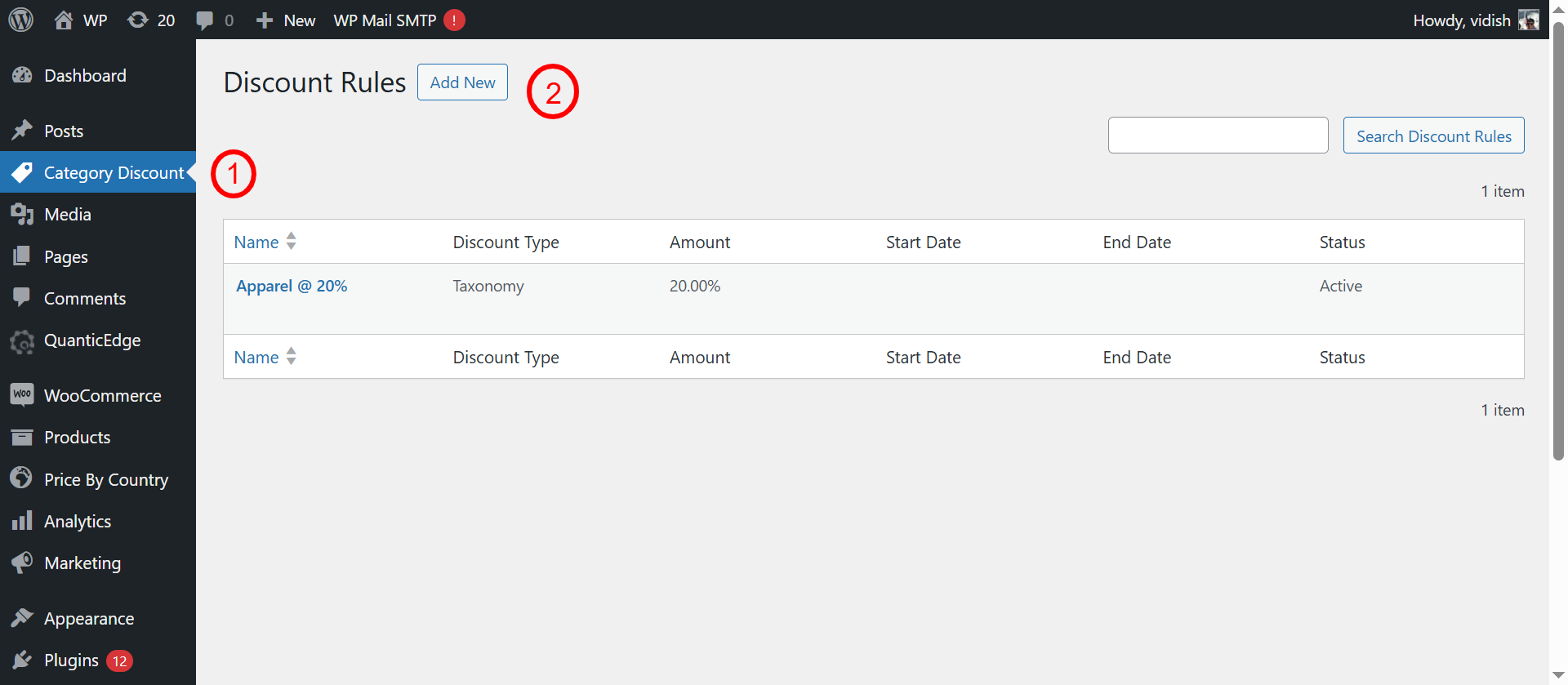
- You will see “Category Discount” option in your admin main menu.
- Click on “Add new”.
- In step 1, you can add all the fields :
- Discount Name : Name of the discount you want to apply. e.g. Nike 50% Off
- Status : Active if you want the discount rule to work/activate
- Choose “Taxonomy” in “Discount Type”.
- Click on “Add Condition” and select “Category” in the taxonomy dropdown. Then you can choose the category which you want to apply discount on.
- If you want to add multiple taxonomies, then you can click on “Add condition” and create more rules.
- You can decide whether you want to match all rules or any one rule.
- Choose amount and discount type(% or fixed amount).
- Click on “Next”. You will see scheduling option. If you want to schedule this sale for future, then you can choose start and end date otherwise skip this step.
- In the final step, it will show you how many products will be affected by the action. If that sounds accurate, then you can go ahead and apply/schedule it.
- Check the discount after few seconds. It should be in place.
Here is a detailed demo video for the same :
If you still need any further assistance, then please email us at info@wooextend.com. I will be more than happy to assist you!
How to setup discount based on quantity?
- You can install the plugin “Simple Discount Rules” and activate it. (See how to install a plugin)
- You will see “Category Discount” option in your admin main menu.
- Click on “Add new”.
- In step 1, you can add all the fields :
- Discount Name : Name of the discount you want to apply. e.g. Nike 50% Off
- Status : Active if you want the discount rule to work/activate
- Choose “Quantity” in “Discount Type”.
- If you need to restrict this promotion to specific category/taxonomy, then : Click on “Add Condition” and select taxonomy in the taxonomy dropdown. Then you can choose the term which you want to apply discount on.
- If you want to add multiple taxonomies, then you can click on “Add condition” and create more rules.
- You can decide whether you want to match all rules or any one rule.
- Set the quantity minimum and maximum thresholds.
- Choose amount and discount type(% or fixed amount).
- Click on “Next”. You will see scheduling option. If you want to schedule this sale for future, then you can choose start and end date otherwise skip this step.
- In the final step, it will show you how many products will be affected by the action. If that sounds accurate, then you can go ahead and apply/schedule it.
- Check the discount after few seconds. It should be in place.
Here is a detailed demo video for the same :
If you still need any further assistance, then please email us at info@wooextend.com. I will be more than happy to assist you!
How to create store wide discount?
- You can install the plugin “Simple Discount Rules” and activate it. (See how to install a plugin)
- You will see “Category Discount” option in your admin main menu.
- Click on “Add new”.
- In step 1, you can add all the fields :
- Discount Name : Name of the discount you want to apply. e.g. Entire Shop Discount
- Status : Active if you want the discount rule to work/activate
- Choose “All Products” in “Discount Type”.
- Choose amount and discount type(% or fixed amount).
- Click on “Next”. You will see scheduling option. If you want to schedule this sale for future, then you can choose start and end date otherwise skip this step.
- In the final step, it will show you how many products will be affected by the action. If that sounds accurate, then you can go ahead and apply/schedule it.
- Check the discount after few seconds. It should be in place.
Here is a detailed demo video for the same :
If you still need any further assistance, then please email us at info@wooextend.com. I will be more than happy to assist you!
How to setup discount based on cart value?
- You can install the plugin “Simple Discount Rules” and activate it. (See how to install a plugin)
- You will see “Category Discount” option in your admin main menu.
- Click on “Add new”.
- In step 1, you can add all the fields :
- Discount Name : Name of the discount you want to apply. e.g. Spend $500 and Get Perfume Free
- Status : Active if you want the discount rule to work/activate
- Choose “Cart Value” in “Discount Type”.
- Setup minimum & maximum spend if you want this promotion to apply. (Optional)
- In “Cart Discount Type” as “Free Gift Away” :
- Choose Free Gift : If you want to reward customer with free gift. It will ask you to choose products to give away.
- Also choose whether you want free gift to be automatically added to cart or want customers to add it.
- In “Cart Discount Type” as “Cart Value Based” :
- Add discount type (whether % or fixed) and amount of discount.
- Click on “Next”. You will see scheduling option. If you want to schedule this sale for future, then you can choose start and end date otherwise skip this step.
- In the final step, it will show you how many products will be affected by the action. If that sounds accurate, then you can go ahead and apply/schedule it.
- Check the discount after few seconds. It should be in place.
Here is a detailed demo video for the same :
If you still need any further assistance, then please email us at info@wooextend.com. I will be more than happy to assist you!


